


Applicable Scope
This guide applies to Gate Web3 Chrome Extension
Before you start: Install Gate Web3 Wallet Chrome Extension from the Chrome Web Store
Estimated time: 5 m
Objective
This guide will walk you through how to create or import a Gate Web3 Wallet using the Chrome Extension.
Steps
Step 1: Open the Gate Web3 Wallet Extension
Click the Gate Web3 Wallet icon in your Chrome browser's extension toolbar to launch the extension homepage.
Step 2: Select Your Setup Method
On the extension homepage, you will see two options:
- Select "Create a wallet" if you are setting up a new wallet
- Select "Import wallet" if you already have an existing wallet
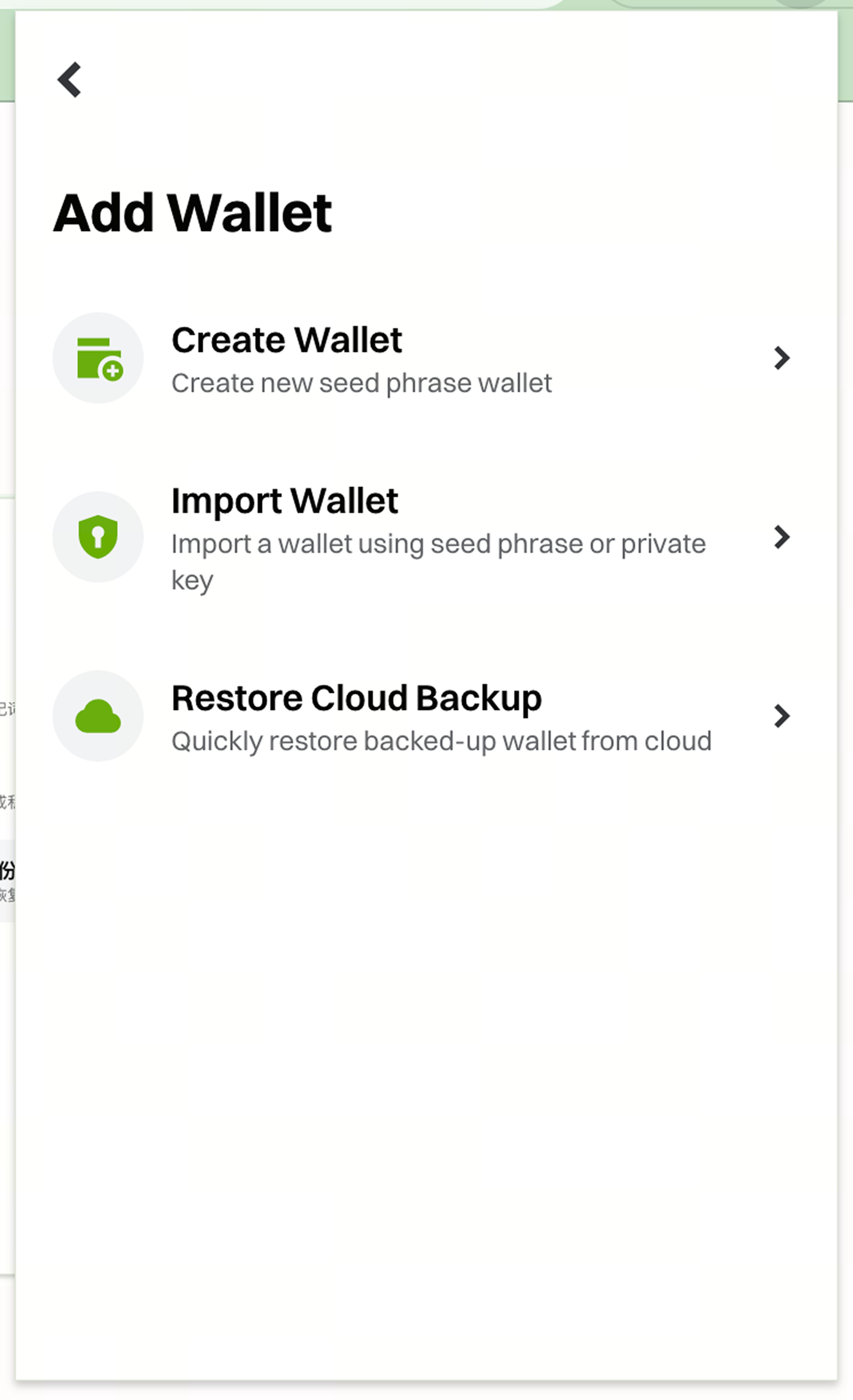
Step 3: Create a New Wallet
If creating a new wallet:
- Click "Create a wallet"
- Enter a strong password when prompted
- Confirm your password
- Save your mnemonic phrases securely in a safe location
- Complete the wallet creation process
Step 4: Import an Existing Wallet
If importing an existing wallet:
- Click "Import wallet"
- Choose your import method (mnemonic phrases or private key)
- Enter your mnemonic phrases or private key in the provided field
- Set a password for this browser
- Complete the import process
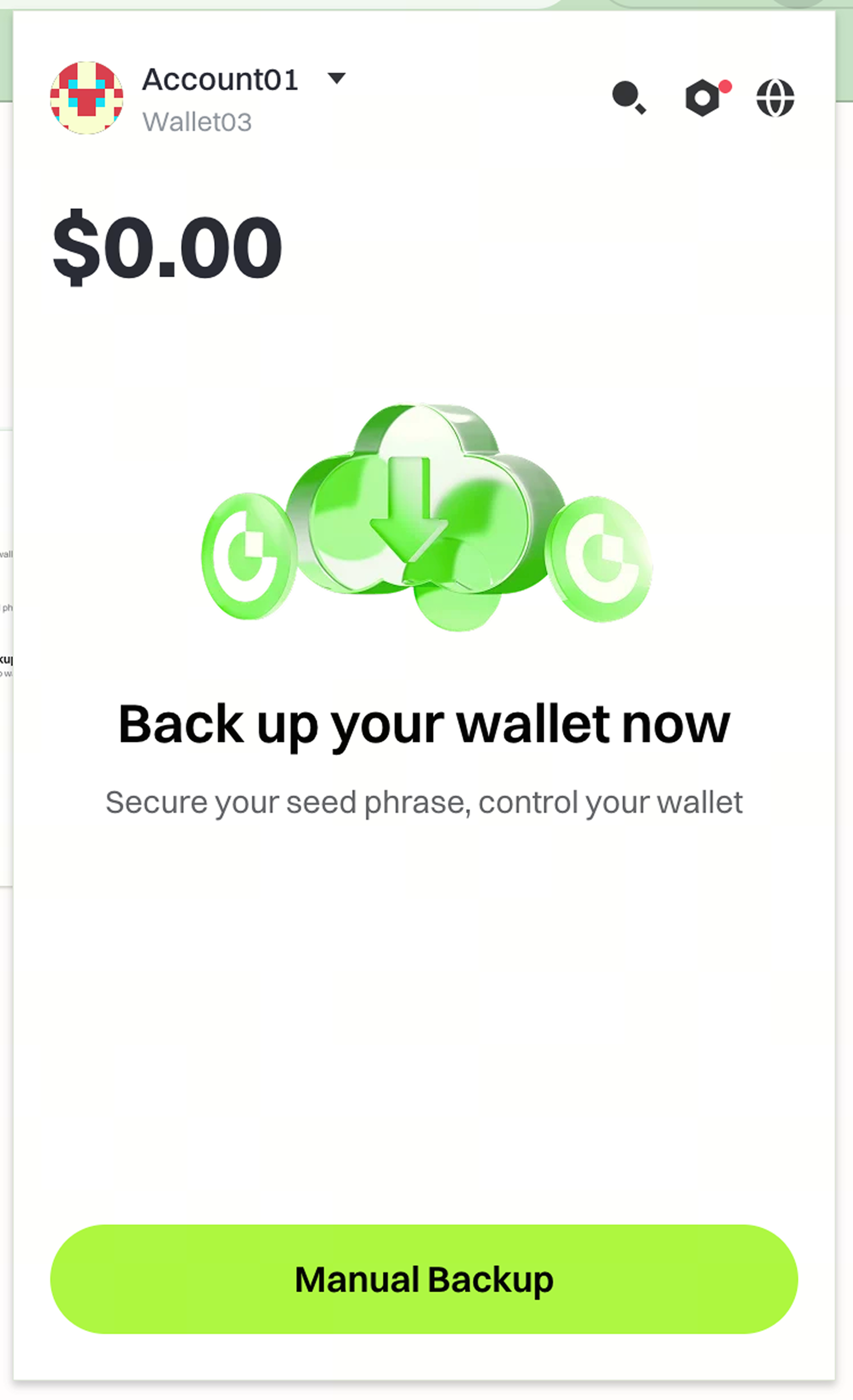
Step 5: Enable Cloud Backup
After creating or importing your wallet, set up cloud backup to secure your assets:
- Access the wallet settings menu
- Locate the cloud backup option as indicated in the interface
- Follow the on-screen instructions to complete cloud backup configuration
Notes
- Gate does not store your password or mnemonic phrases. You are solely responsible for keeping them secure.
- Lost passwords and mnemonic phrases cannot be recovered, and you may permanently lose access to your assets.
- Cloud backup helps prevent asset loss when switching devices, but you should still maintain secure offline backups of your mnemonic phrases.
- Digital asset investments involve significant risk and prices may fluctuate substantially.
- Gate may update product features, interfaces, and security protocols at any time.
FAQ
Q1: What happens if I forget my wallet password?
A: You can regain access to your wallet by using your mnemonic phrases through the "Import wallet" option. However, if you lose both your password and mnemonic phrases, your assets cannot be recovered.
Q2: Why should I set up cloud backup?
A: Cloud backup ensures you can restore your wallet when switching devices or reinstalling the extension. However, it should complement, not replace, secure offline storage of your mnemonic phrases.
Q3: Can I use my wallet across different platforms?
A: Yes, you can import your wallet to Gate App, Chrome Extension, or other supported platforms using your mnemonic phrases or private key. Each platform will require you to set a password independently.
Disclaimer
The content provided herein is for reference and educational purposes only and does not constitute any financial, investment, trading, or legal advice, nor does it constitute an offer or solicitation to buy or sell any digital assets. Gate makes no express or implied representations or warranties regarding the accuracy, completeness, or timeliness of the information contained herein. Product features, interfaces, rules, and fee structures may be updated or adjusted at any time. Please refer to the latest announcements and the actual information displayed on the Gate platform for the most accurate details.
Digital asset investments involve significant risk, and prices may fluctuate substantially. You may lose the entire amount of your investment. Please make decisions cautiously based on your own financial situation and risk tolerance after fully understanding the associated risks. If necessary, you are advised to consult an independent professional financial or legal advisor.
For more information about potential risks, please refer to Gate's Risk Disclosure and User Agreement.
