


Після того як ви ініціюєте зняття коштів на Gate, система може перевірити запит відповідно до політики безпеки. Якщо статус зняття відображається як «Перевірка» або «Розпізнавання обличчя», будь ласка, дотримуйтесь інструкцій нижче.
1. Про статус «Перевірка»
Якщо статус вашого зняття — «Перевірка», спочатку підтвердіть, чи пройшов ваш акаунт процедуру підтвердження особи:
- Натисніть «Статус перевірки» або увійдіть у застосунок Gate та перейдіть до розділу [Центр користувача] – [Перевірка особи], щоб перевірити свій статус верифікації.
Якщо перевірку особи не завершено, дотримуйтесь інструкцій на екрані, щоб надіслати необхідні документи. Докладні кроки дивіться в посібнику. - Якщо перевірку вже завершено, але статус не оновився, зверніться до служби підтримки клієнтів або надішліть запит та надайте фото з документом у руках, як описано нижче.
- Вимоги до фото з документом у руках:
Ви повинні тримати і документ, що посвідчує особу, і рукописну записку на одному фото. Записка має містити:
Ваш UID/ім’я користувача, ID ордера на зняття коштів, мета запиту (наприклад, «підтвердження зняття») та поточна дата.
Переконайтеся, що ваше обличчя, дані документа та рукописна записка чітко видно і нічим не закриті. Ви можете керуватися прикладом на зображенні нижче: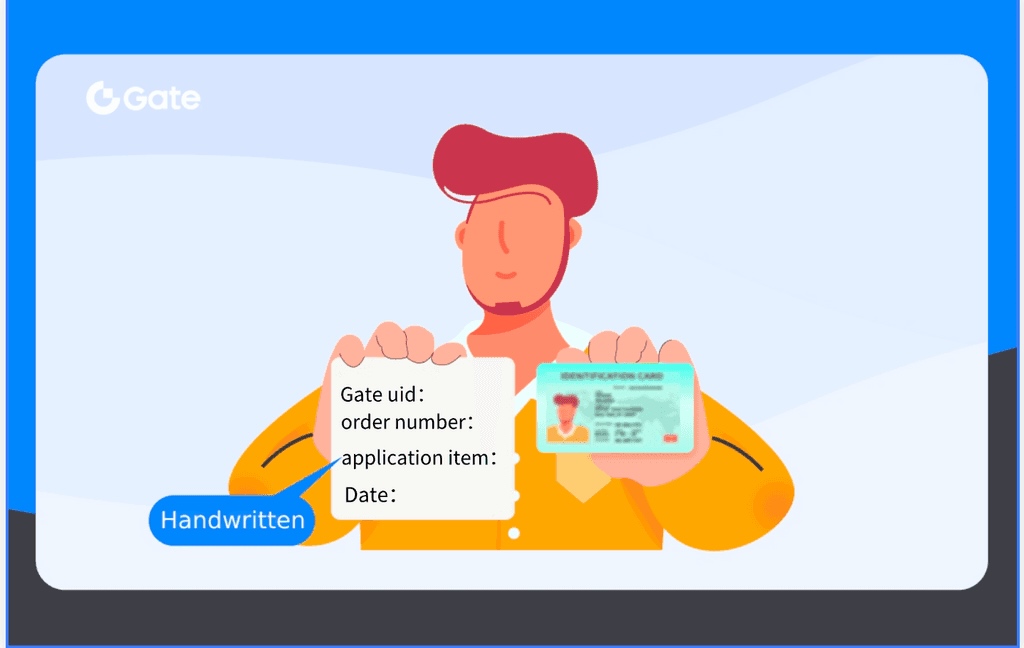
2. Про статус «Розпізнавання обличчя»
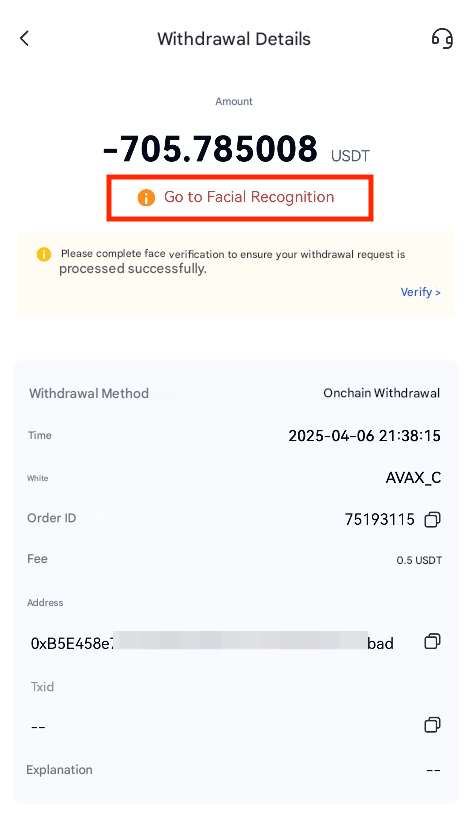
Примітки:
- Докладні інструкції щодо звернення до служби підтримки див. у розділі Як зв’язатися зі службою підтримки клієнтів Gate: повний посібник.
- Якщо вам потрібно скасувати зняття коштів через неправильний вибір адреси/мережі, поки ви перебуваєте у статусі «Розпізнавання обличчя», не продовжуйте верифікацію обличчя. Негайно зверніться до служби підтримки клієнтів та поясніть причину скасування.
- Якщо перевірка особи або розпізнавання обличчя не вдається або не відображається жодної відповіді, ми рекомендуємо оновити застосунок до останньої версії або перейти на інший пристрій, щоб завершити процес.
- Якщо ви користуєтеся веб-версією, радимо перейти на мобільний або настільний застосунок (з робочою камерою), щоб завершити процес розпізнавання обличчя.
- Не надсилайте запит на зняття коштів повторно, поки він має статус «Перевірка».
Відмова від відповідальності
Наданий тут зміст призначений лише для ознайомлення та освітніх цілей і не є фінансовою, інвестиційною, торговою чи юридичною порадою, а також не є пропозицією або закликом купувати чи продавати будь-які цифрові активи. Gate не надає жодних прямих чи непрямих заяв або гарантій щодо точності, повноти чи актуальності інформації, що міститься тут. Функціонал продукту, інтерфейси, правила та структура комісій можуть оновлюватися або змінюватися у будь-який час. Для отримання найактуальнішої інформації звертайтеся до останніх оголошень і фактичних даних, що відображаються на платформі Gate.
Інвестиції в цифрові активи пов'язані зі значними ризиками, а ціни можуть суттєво коливатися. Ви можете втратити всю суму своїх інвестицій. Приймайте рішення обережно, враховуючи власний фінансовий стан і рівень толерантності до ризику після повного розуміння супутніх ризиків. За потреби рекомендується звернутися до незалежного професійного фінансового чи юридичного радника.
Щоб отримати додаткову інформацію про потенційні ризики, зверніться до Розкриття інформації про ризики та Угоди користувача Gate.
